Copilot Wrote the VBA. Bridgestone Finance Ran It.
After a Copilot workshop with the Bridgestone finance team, one participant turned a recurring chore into one click: a VBA macro that sends each supplier a single, consolidated GST invoice-mismatch email. Microsoft 365 Copilot Chat wrote the code. They defined it, tested it and ran it.
The problem
Invoices that don't match GSTR-2B have to be chased with the supplier so they can correct their GST return. The data was already in Excel. Writing the emails was the slow part.
BeforeSupplier by supplier
- Filter the mismatch sheet for one supplier
- Copy their invoice lines into an email and format the table
- Add up the tax and type the grand total
- Look up who goes in To and CC, write the subject
- Repeat for every supplier, and hope nothing was missed
AfterOne click
- One email per supplier, however many invoice lines they have
- All invoices in a table: invoice no, date, taxable value, IGST, CGST, SGST, total tax
- Grand total calculated by the macro
- To, CC and subject taken straight from the sheet
- Mail Log sheet records every email that went out
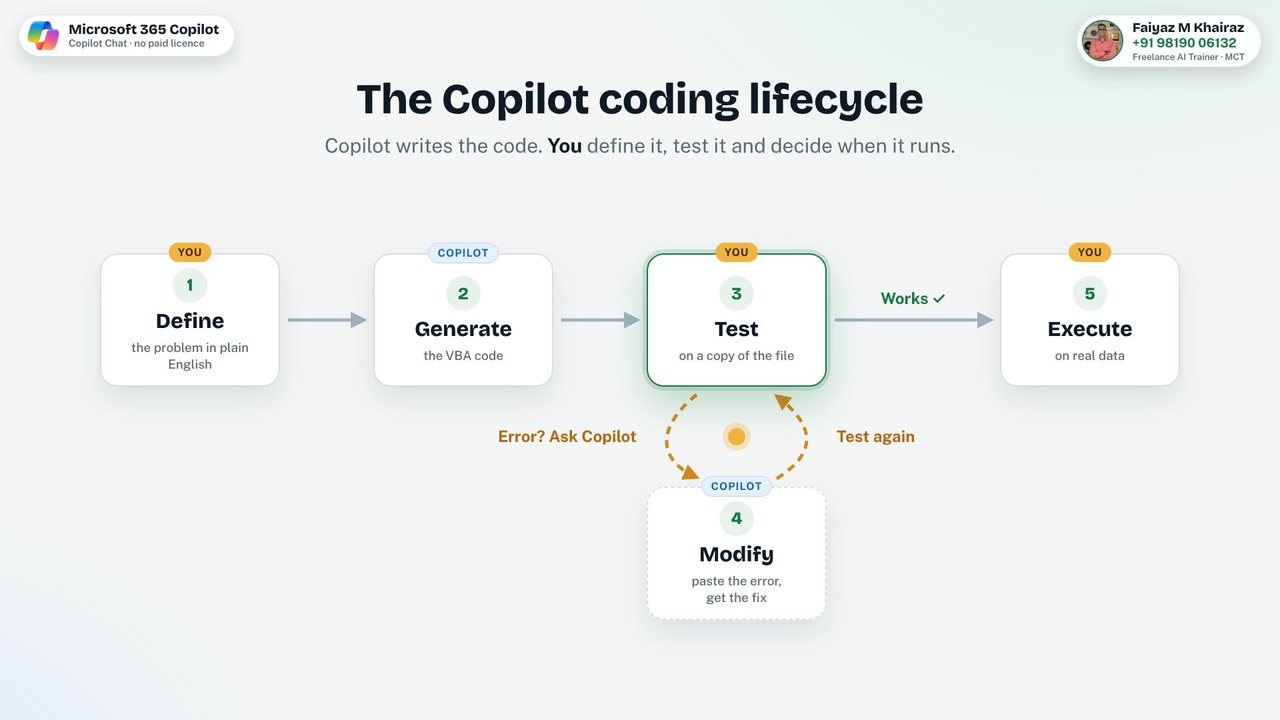
Five steps: Define, Generate, Test, Modify, Execute
This is the lifecycle I teach for building anything with Copilot. Copilot does the writing. You own every step that needs judgement.
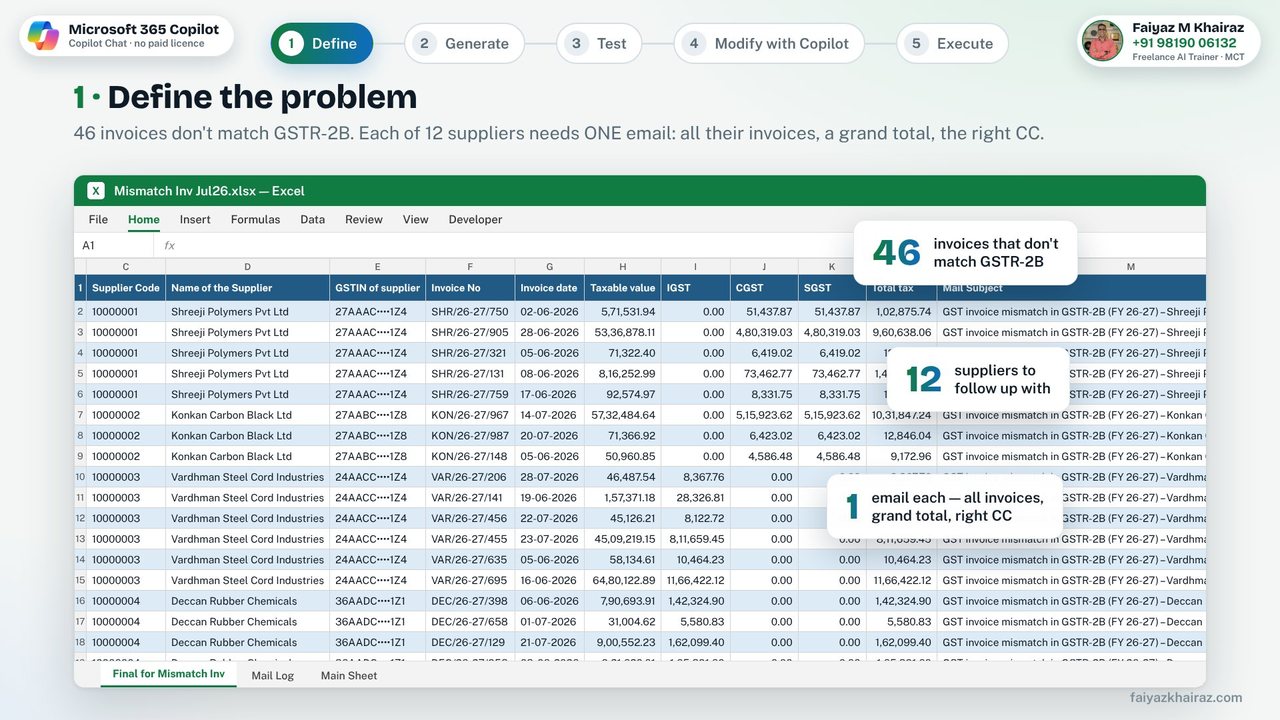
1 · Define the problem
Start with the sheet, not with Copilot. The table GST on Final for Mismatch Inv has one row per mismatched invoice, with the supplier code, invoice details, tax amounts, mail subject and To / CC addresses.
Then say what "done" looks like: one email per supplier, all their invoices, a grand total, recipients from the sheet, and a log.
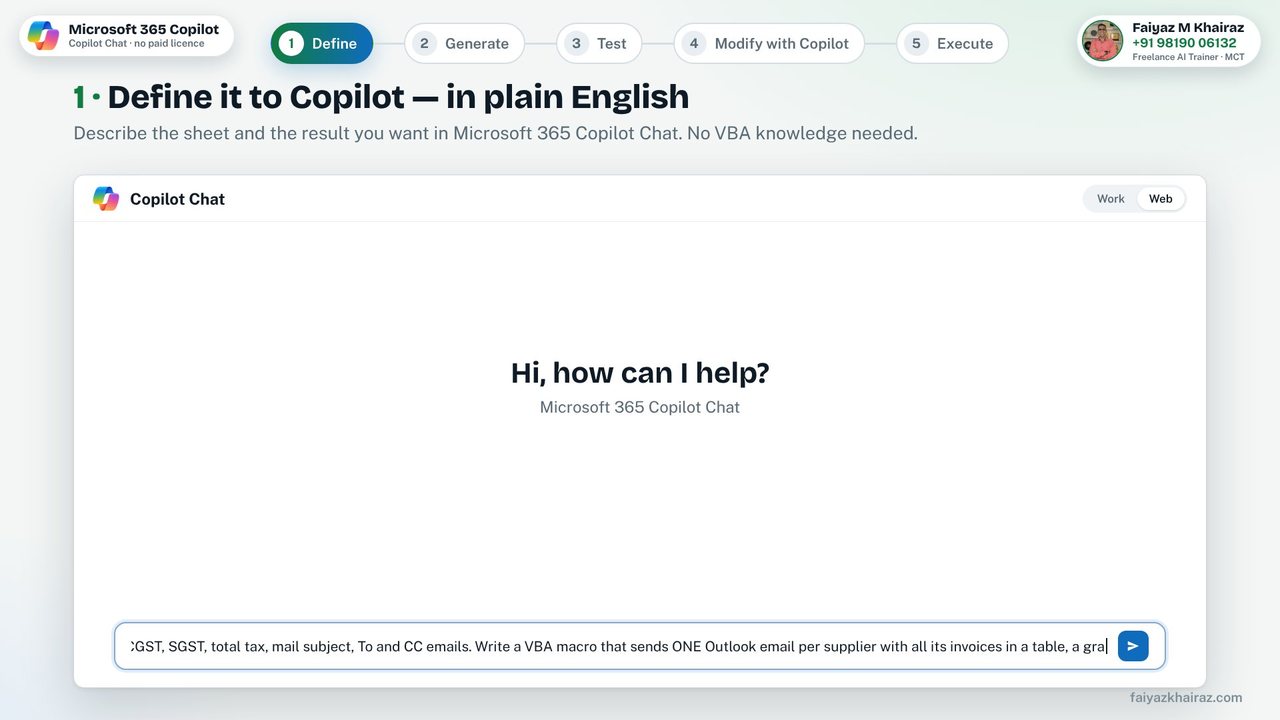
1 · Describe it to Copilot Chat
Plain English is enough. Name the sheet, the table, the columns and the result.
Tip: describe the columns. You don't need to paste invoice data into the chat.
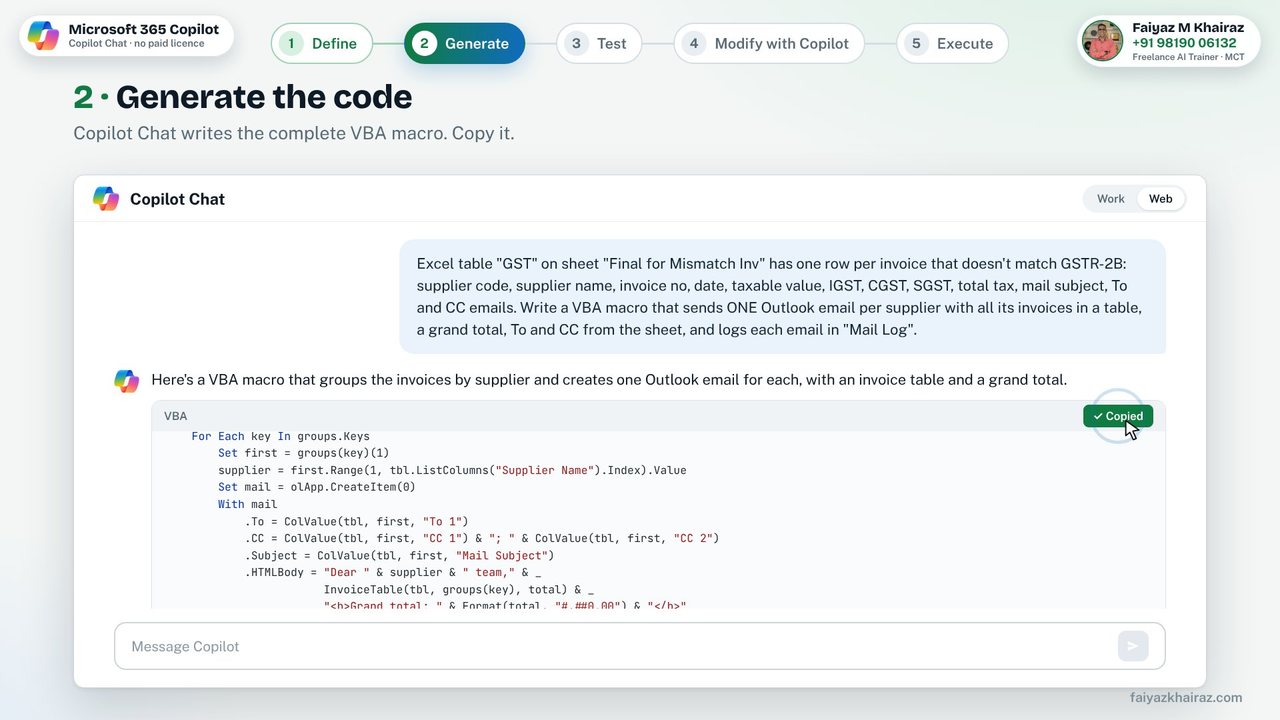
2 · Generate the code
Copilot Chat returns a complete macro: it groups the rows by supplier code, builds an HTML table per supplier, adds the grand total and creates the Outlook email. Copy it.
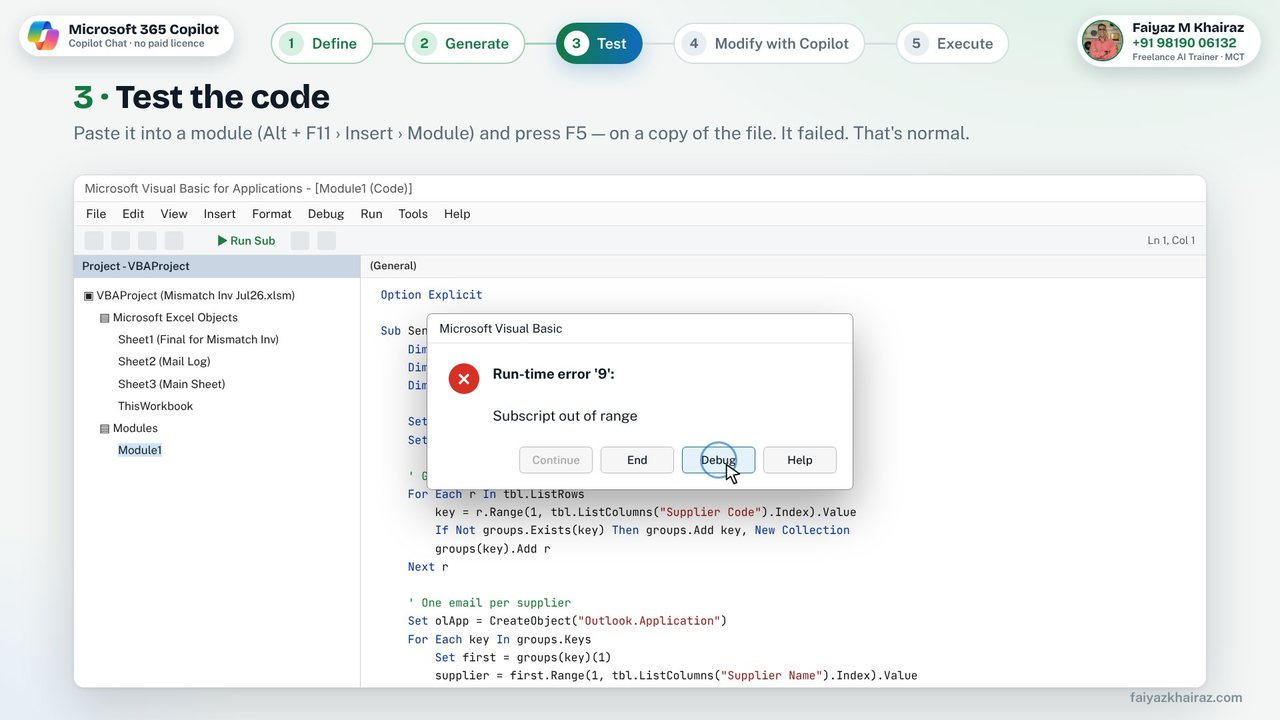
3 · Test the code
In Excel, press Alt + F11, choose Insert › Module, paste, and press F5. Always test on a copy of the file.
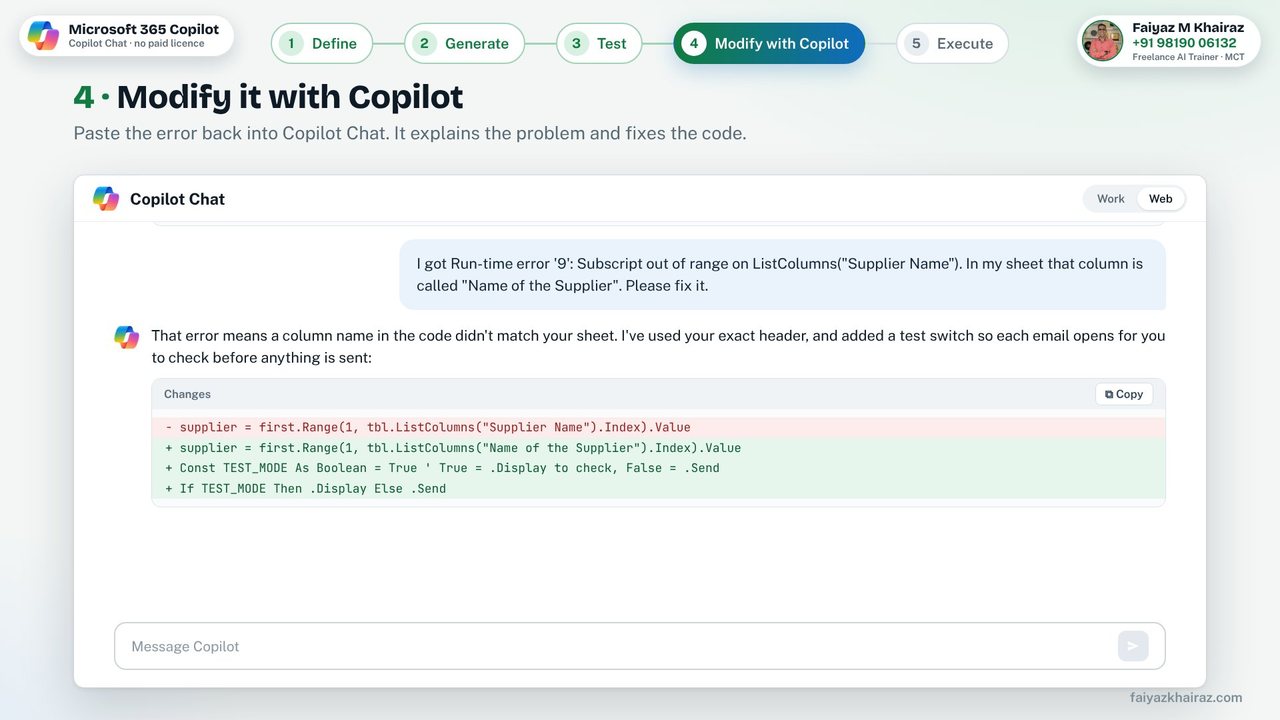
First run: Run-time error '9': Subscript out of range. Copilot had guessed a column called "Supplier Name". The real header is "Name of the Supplier". Errors like this are normal, and they are why testing is your job.
4 · Modify it with Copilot
Click Debug, note the highlighted line, and paste the error back into the same chat.
Ask for a safety switch too: a test mode that opens each email with .Display instead of sending it with .Send.
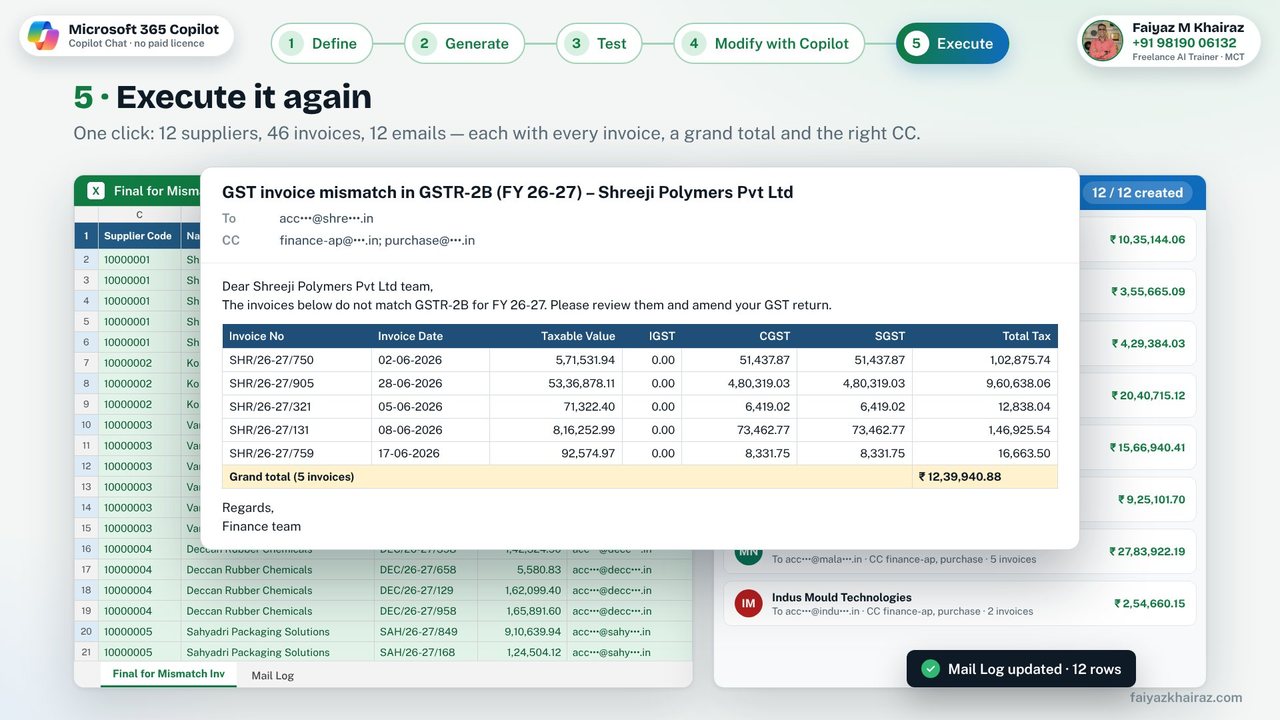
5 · Execute it again
Run it in test mode, open a few emails and check the totals against the sheet. When they are right, switch test mode off and run it for real.
Sample run: 46 invoice lines, 12 suppliers, 12 emails, each with its own invoice table, grand total and CC list, and 12 rows in the Mail Log.
Code writing can now be outsourced.
Executing is in our hands.
Copilot didn't know who to email or why. The finance team did.
Never run new code on the live file first.
Spotting the column name was the whole fix.
Display first, check the numbers, then send.
The Copilot coding lifecycle
Steps 3 and 4 repeat until the test passes. Most macros need one or two rounds.
Try it yourself
A sample workbook with the same structure (made-up suppliers and amounts, example.com addresses) and a tidied-up version of the macro.
- Open the workbook and save it as .xlsm (macro-enabled).
- Alt + F11 › File › Import File › choose SendSupplierGSTEmails.bas.
- Leave TEST_MODE = True and press F5. Each email opens in Outlook. Nothing is sent.
- Check the emails, then set TEST_MODE = False to send.
Note: this needs classic Outlook for Windows. The new Outlook doesn't support VBA automation.

Want your team building like this?
I'm Faiyaz M Khairaz, a Freelance AI Trainer and Microsoft Certified Trainer. My Copilot and Advanced Excel workshops are built on your team's own processes, so people leave with automations like this one, not just slides.